Quick Setup: GitLab Pages
With GitLab Pages, you can deploy a static website.
Create Project: Sign in to GitLab ➔ New Project ➔ Create from template.
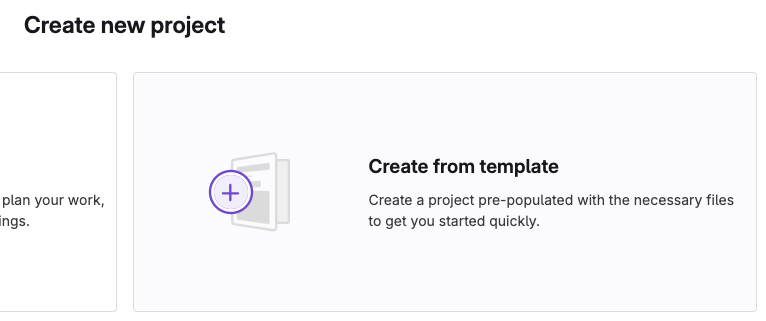
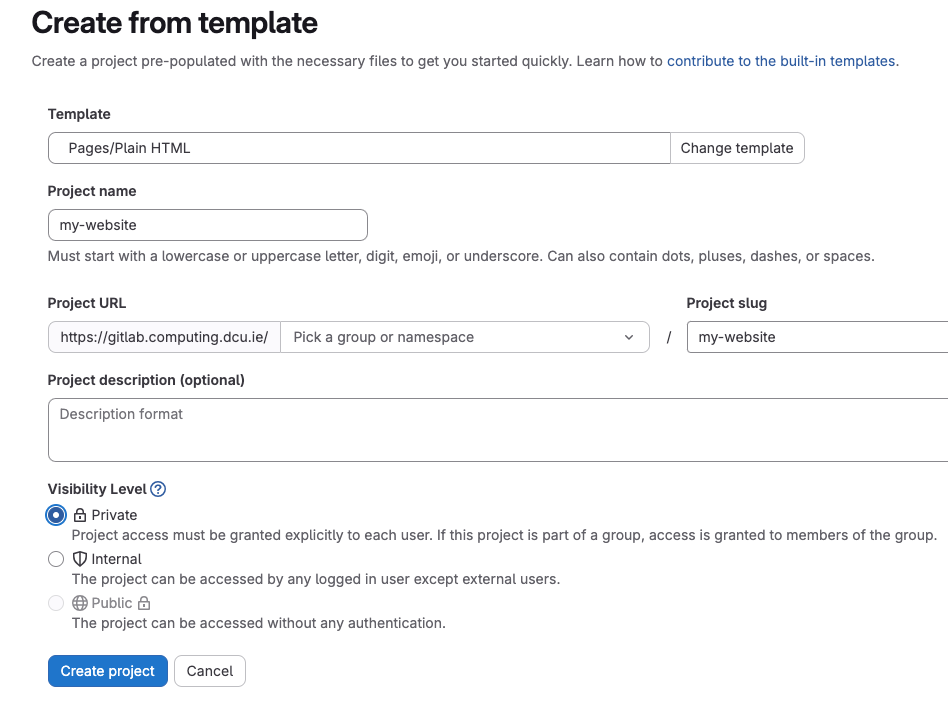
Select Template: Choose Pages/Plain HTML.

Configure: Name your project, set visibility to Private, and click Create project.
Deploy: GitLab CI/CD will automatically run a pipeline to deploy your site.
Project Structure
A minimalist GitLab Pages project requires only two files:
├── .gitlab-ci.yml    # Instructs GitLab how to build/deploy the site
└── public/           # The directory containing your website content
    └── index.html    # Your website's main landing page
Important: GitLab Pages only serves files located inside a folder named exactly public.
How to Restrict Access to Site.
You can enable Pages access control on your project. When enabled, only authenticated members of your project can access your website. See Appendix 1 for more information about restricted access.
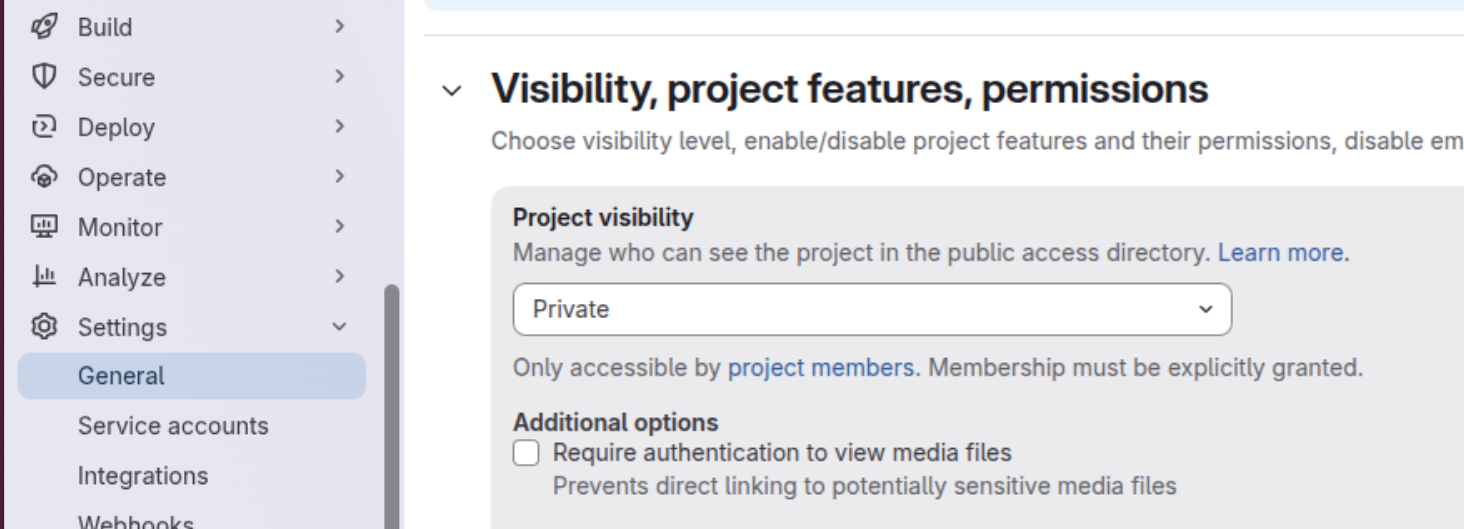
First, go to Settings ➔ General ➔ Visibility, project features, permissions
Also allow everyone access to the pages:

Then click Save.
How to Validate Your Site is Online
Once the pipeline finishes, follow these steps to verify everything is working correctly:
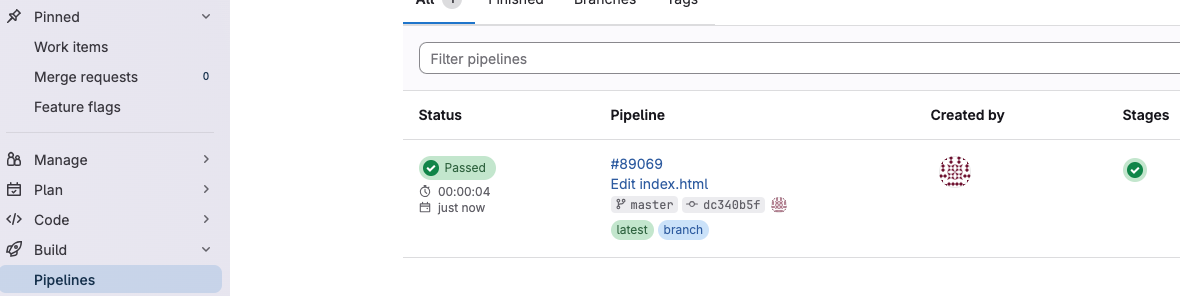
1. Check the Pipeline Status
Go to Build ➔ Pipelines in your GitLab sidebar.
Ensure the latest pipeline shows a green Passed badge. If it failed, click the badge to read the error logs.
2. Locate and Test the URL
Go to Deploy ➔ Pages in the sidebar.
Look for the Access pages section to find your unique URL, which will look similar to:
https://[username-or-group].pages.computing.dcu.ie/[project-name]/
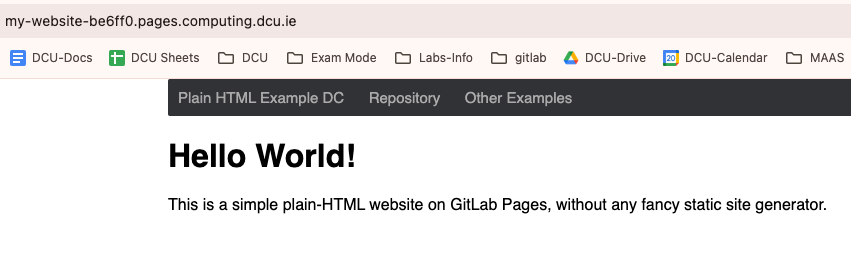
Click the link. If your index.html loads successfully, your site is live and valid.
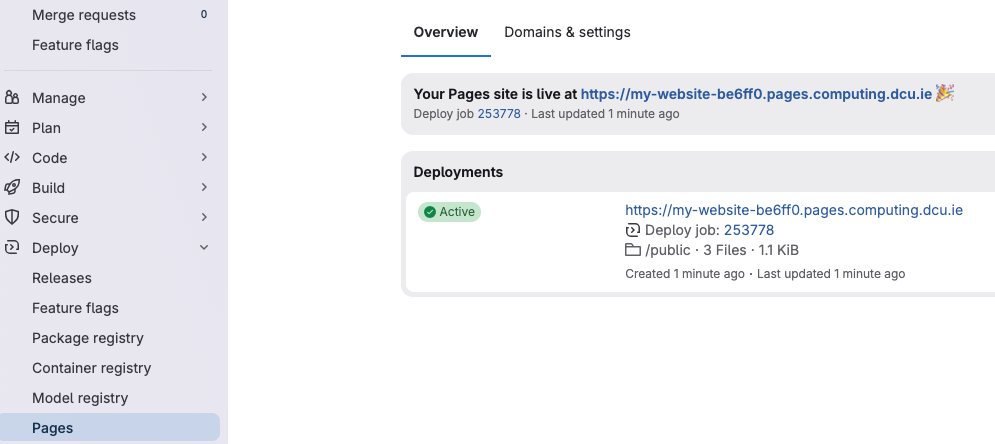
For Example:
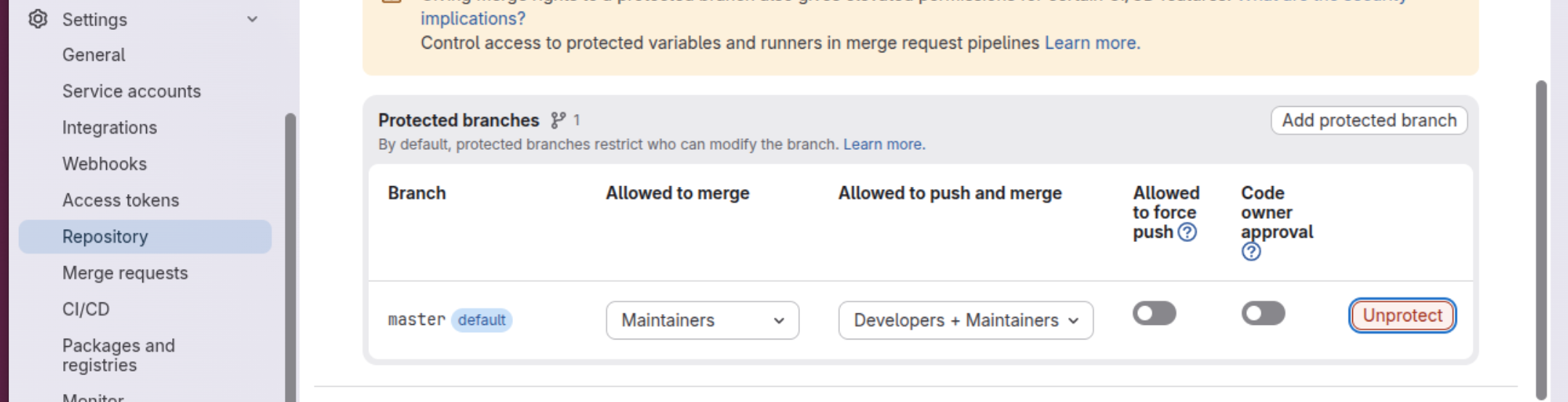
Note, you may or may not need to unprotect the branch after initialisation. In the gitlab project page, Go to "Settings", "Repository". Click "Protected Branches". Click "unprotect" option for the branch.
Note, you or may not also need to disable the "Additional options" - "Require authentication to view media files" after initialisation. In the gitlab project page, Go to "Settings", "General". "Visibility, project features, permissions". Uncheck the following option: "Additional options" - "Require authentication to view media files"
Appendix 1: Enable Pages access control on your project
You can enable Pages access control on your project. When enabled, only authenticated members of your project (at least Guest) can access your website, by default:
For a demonstration, see Pages access controls.
On the top bar, select Search or go to and find your project.
Select Settings > General.
Expand Visibility, project features, permissions.
To enable the access control, toggle Pages.
If you don't see the toggle button, that means it isn't enabled. Ask your administrator to enable it.
The Pages access control dropdown list allows you to set who can view pages hosted with GitLab Pages, depending on your project's visibility:
If your project is private:
Only project members: Only project members can browse the website.
Everyone: Everyone, both logged into and logged out of GitLab, can browse the website, no matter their project membership.

If your project is internal:
Only project members: Only project members can browse the website.
Everyone with access: Everyone logged into GitLab can browse the website, no matter their project membership. External users can access the website only if they have a membership in the project.
Everyone: Everyone, both logged into and logged out of GitLab, can browse the website, no matter their project membership. If your project is public:
Only project members: Only project members can browse the website.
Everyone with access: Everyone, both logged into and logged out of GitLab, can browse the website, no matter their project membership.
Select Save changes. Your changes may not take effect immediately. GitLab Pages uses a caching mechanism for efficiency. Your changes may not take effect until that cache is invalidated, which usually takes less than a minute.
The next time someone tries to access your website and the access control is enabled, they're presented with a page to sign in to GitLab and verify they can access the website.
When SAML SSO is configured for the associated group and the access control is enabled, users must authenticate using SSO before accessing the website.
When public access is disabled at the instance or group level, projects lose the Everyone visibility level option and are restricted to project members or everyone with access, depending on the project's visibility setting.